Results - List View Tab
The List View tab displays detailed information about the service leads included in the search, such as the lead status and any proposals currently associated with the customer.

|
The List View tab can be accessed using one of the following methods:
|
 (List View) icon on the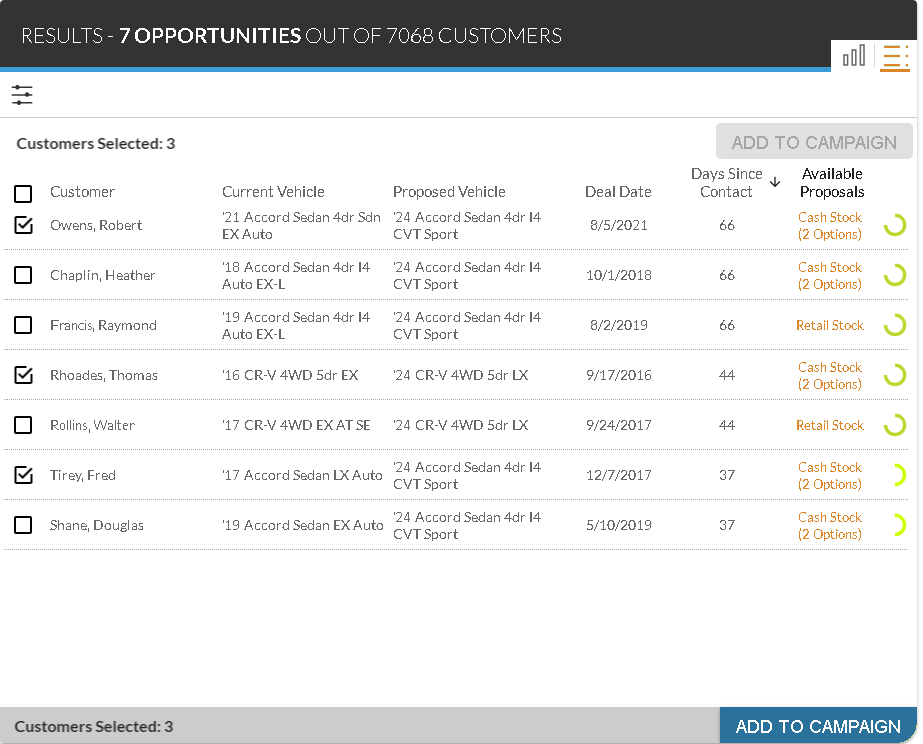
To view additional details about a customer proposal, click the link in the Available Proposals column. The Lead Sheet panel and the Proposal Review panel display, where the lead can be viewed, printed, or edited.
Leads display in this section sorted by the prediction indicator associated with the lead, beginning with the customers most likely to purchase. Leads can be resorted by clicking a column heading. Once a column heading is clicked, the search results are re-sorted in descending order, and the  (Descending) icon displays next to the selected column heading.
To change the sort to ascending order, click the same column heading again. The customers are re-sorted in ascending order, and the  (Ascending) icon displays next to the selected column heading.
The following columns display on the List View tab.
Selected: (Not labeled) Select the check box at the top of this column to indicate that each displayed customer should be added to the sales campaign. Alternatively, select individual check boxes in this column to indicate that only certain customers should be added to the sales campaign. As customers are selected, Customers Selected: X displays at the top and bottom of the Results panel, where "X" is the number of customers currently selected.
Customer: The name of the customer displays.
Current Vehicle: The year, model, and trim of the customer's current vehicle display.
Proposed Vehicle: The year, model, and trim of the proposed vehicle display.
Deal Date: The date of the customer's most recent deal displays.
Days Since Contact: The number of days since the customer was last contacted displays.
Available Proposals: (Link) The proposal type for the customer displays as a link. Click this link to access the Lead Sheet panel, where the proposal can be reviewed, printed, edited, or added to the sales campaign. If multiple proposals are available for a customer, the Proposal Review panel also displays, where a different proposal can be selected or edited.
Prediction Indicator: (Not labeled) An icon displays to indicate how likely the corresponding customer is to purchase a vehicle.
The following icons can display.
-
 (Okay)
 -
 (Good)
 -
 (Great)
 -
 (Wow)
(Wow)
Click here for a list of products that may be mentioned in this help file.